Windows 11 Build 26340.9767 Quick Settings Phone Controls and Speed Test Explained: Ring Your Android Phone From Your PC (World Tech)
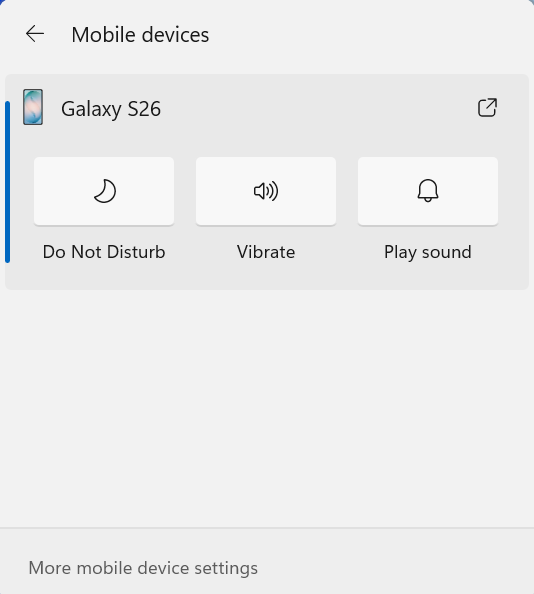
Image: Microsoft — Mobile devices controls in Quick Settings (official product image, via the Windows Insider Blog)
📌 KEY HIGHLIGHTS
- Released 23 October 2026: Windows 11 Insider Preview Build 26340.9767 for version 26H2, in the Experimental channel.
- Phone controls in Quick Settings: a new Mobile devices section lets you silence your Android phone, change its ringer mode and ring it to find it — without opening Phone Link.
- Native speed test: download speed, upload speed and ping now show inside Quick Settings — no browser redirect, unlike the earlier Insider version.
- Android first, iPhone limited: Microsoft says the fullest controls are for Android; iPhone support starts with a status-focused view.
- Also in the build: a feature-flag filter in Insider settings, Microsoft 365 billing management, and fixes for a Taskbar-loading bug and a false wrong-password message.
What happened?
On 23 October 2026, Microsoft's Windows Insider team announced a fresh round of Insider Preview builds for the Beta and Experimental channels. The headline build is 26340.9767, an Experimental-channel quality update for Windows 11 version 26H2 — the channel where Microsoft tests its earliest, least-finished ideas, delivered on top of version 25H2 through an enablement package.
The two features worth your attention both live in Quick Settings, the panel you open with Windows + A. The first is a Mobile devices experience: with a supported Android phone connected, everyday phone actions are a click away. The second is a built-in internet speed test whose results now appear inside Windows itself. Both are rolling out gradually, so not every Insider on the build will see them on day one.
The same announcement also shipped Beta build 26220.9757 (which adds a customisable File Explorer context menu), plus minor builds for the 26H1 and Future Platforms branches. This post focuses on the Experimental build, where the new features are.
Windows 11 build 26340.9767 quick settings phone controls speed test explained: the two new features
| Feature | What it does | How to start it | Limits to know |
|---|---|---|---|
| Mobile devices in Quick Settings | Turn Do Not Disturb on before a meeting, change the phone's ringer mode, play a sound to find a nearby phone; battery status shown too | Open Quick Settings → Mobile devices (Windows walks you through setup if no phone is connected) | Fullest controls on Android only; iPhone starts with a status view; controls vary by phone model and configuration |
| Built-in internet speed test | Shows progress and results — download speed, upload speed and ping — inside Quick Settings, on your active connection | New Speed test Quick Setting, the Wi-Fi or Cellular flyout, or right-click the network icon → Test internet speed | Microsoft does not name the measurement provider; the result tells you how fast the connection is, not why it is slow |
| Feature-flag filter | Filter the Windows Insider Program settings page by feature-flag enablement state (enabled / disabled / all) | Windows Insider Program settings page | Experimental channel only; of interest mainly to Insiders tracking staged rollouts |
The speed test is the quieter fix of the two, and arguably the more satisfying. An earlier Insider version of the test sent you out to a browser page to see the results; this build keeps the whole experience inside Windows. It is a small change, but it removes one of those pointless round-trips that made the old shortcut feel unfinished.
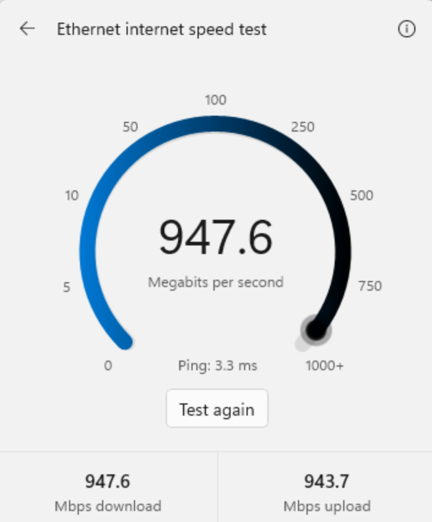
Image: Microsoft — internet speed test results in Windows (official product image, via the Windows Insider Blog; the figures shown are Microsoft's demo screenshot, not a measurement from this blog)
Why it matters for World Tech readers
Microsoft has been chasing phone-PC continuity for years through Phone Link, and this build moves the most-used phone actions one layer closer — into a panel Windows users already open dozens of times a day. Silencing your phone before a meeting is now a click in a panel you already use, instead of a trip into a separate app. The comparison to Apple's ecosystem is obvious, and Microsoft is not hiding from it: the difference is that Windows has to do this across hundreds of Android models and a walled-off iPhone, which is exactly why Android gets the full set first.
For Indian readers, the Android-first order matters more than it does elsewhere: the overwhelming majority of phones in India run Android, so the users who gain the most from this build are the ones most likely to be reading this. The speed test has a practical Indian angle too — broadband and mobile speeds vary widely by city and provider, and a one-click check from the taskbar is the fastest way to settle "is it my connection or the website?" before calling support.
There is a second, structural point. The same week brought a wave of developer-facing October updates — this blog covered VS Code 1.143 making Copilot the default and GitHub's Package Firewall for agent-written code — and the Insider programme is where Microsoft's own OS experiments surface first. Watching the Experimental channel is how you learn what the next public Windows release will feel like, months early.
Should you care?
How to try it, and what else shipped
If you are already on the Experimental channel on build 26340.9767, open Quick Settings and look for Mobile devices; if your phone is already connected, its battery status and available controls appear there, and if not, Windows walks you through setup. For the speed test, right-click the network icon in the system tray and choose Test internet speed.
Beyond the two headline features, the build adds Microsoft 365 recurring-billing management directly in Settings, clearer loading progress in File Explorer for slow locations such as network drives, more language support for mathematical content in Narrator, and a tidied Widgets picker. Two fixes matter: one for explorer.exe failing to load after sign-in (which left the Taskbar unavailable), and one for Insiders incorrectly told at sign-in that their password was wrong.
Not on the Insider programme? Stay put. Experimental features routinely change, get cut, or arrive months later in a different form — the stable release is where these ideas earn their keep. We will update this post when Microsoft confirms a public rollout or drops either feature.
FAQs
What is Windows 11 build 26340.9767?
It is a Windows 11 Insider Preview quality update for version 26H2, released 23 October 2026 to the Experimental channel. Its headline additions are Mobile devices phone controls and a built-in speed test in Quick Settings, plus a feature-flag filter in Insider settings.
How do I control my Android phone from Quick Settings?
On build 26340.9767, open Quick Settings (Windows + A) and select Mobile devices. With a supported Android phone connected, you can turn on Do Not Disturb, change the ringer mode, see battery status and play a sound to find the phone nearby. The rollout is gradual, so the section may not appear immediately.
Does the new Quick Settings phone control work with iPhone?
Only partly. Microsoft says the initial experience provides the most complete set of controls for Android phones, while iPhone support starts with a more limited, status-focused view. Controls also vary by phone model and configuration, and Microsoft has not published a supported-models list.
Will these features reach all Windows 11 users?
Not necessarily. Experimental-channel features may change, be removed, or never be released beyond Windows Insiders. If they do ship publicly, expect them in a later 26H2-era update — and this post will be updated when Microsoft confirms it.
Takeaway: Build 26340.9767 is Microsoft quietly removing two daily frictions — the phone you keep reaching for and the speed test that kept opening a browser. Small features, honestly useful, and worth watching as they move toward a public release.
Follow World Tech on TechByCountry for tomorrow's update.
📸 Get tech in the last 24 hours on Instagram — follow @_techinlast24hrs for daily posts (9 AM–9 PM) and reels at 12:30 PM & 8:30 PM.
Sources
- Microsoft Windows Insider Blog — Announcing new builds for 23 October 2026 (primary source)
- Thurrott — Microsoft is Integrating Mobile Device Controls into Windows 11's Quick Settings Menu
- Pureinfotech — Windows 11 build 26340.9767 adds browser-free internet speed tests and phone controls
- Windows Report — Windows 11 Insider Experimental Build Adds Phone Controls and Speed Test
Comments
Post a Comment